Ping is one of the most important factors affecting online gaming, video conferencing, live streaming, and other internet-based activities. High ping can cause delays, lag, rubber-banding, slow response times, and frustrating gameplay experiences. Whether you are playing competitive multiplayer games, participating in online meetings, or streaming content, reducing ping can significantly improve your experience.
Ping refers to the time it takes for data to travel from your device to a server and back again. It is measured in milliseconds (ms). Lower ping generally means faster communication between your device and the server, resulting in smoother performance and quicker response times. A ping below 50 ms is typically considered excellent for gaming, while higher values may lead to noticeable delays.
Many factors influence ping, including internet connection quality, network congestion, distance from servers, router performance, device settings, and background applications. Fortunately, there are numerous steps users can take to reduce latency and optimize their network performance.
This comprehensive guide explores 30 practical strategies for lowering ping and improving overall internet responsiveness.
Understanding Ping and Latency
Before learning how to reduce ping, it is important to understand what causes latency. Ping measures the round-trip travel time of data packets between your device and a server. Every online action, whether moving a game character or sending a message, requires data to travel across networks.
Factors that affect ping include:
- Distance from the game or service server
- Internet service provider routing
- Wireless interference
- Network congestion
- Hardware limitations
- Background internet usage
- Server performance
By addressing these factors, users can often achieve significant reductions in latency and improve online performance.
Scan for Malware Regularly
Malware can secretly consume bandwidth, processing power, and network resources, causing unnecessary delays in internet communication. Running regular antivirus and anti-malware scans helps identify and remove harmful software that may be slowing down your connection. Many malicious programs continuously send and receive data in the background, which can increase network congestion and interfere with online gaming performance. Keeping security software updated ensures new threats are detected quickly.
Effect: Removing malware can lower unnecessary bandwidth usage, improve network stability, reduce lag spikes, decrease packet loss, and create a smoother gaming experience with more consistent ping values.
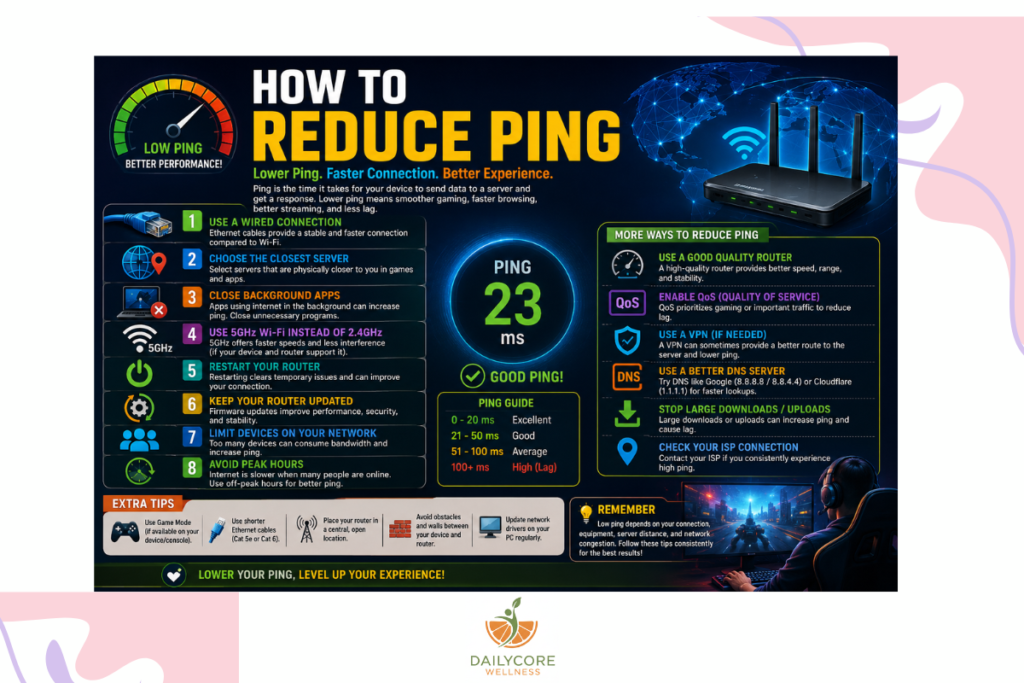
30 Proven Ways on How to Reduce Ping 2026
1. Use a Wired Ethernet Connection
A wired Ethernet connection is one of the most effective ways to reduce ping. Ethernet cables provide a direct and stable connection between your device and router, minimizing signal interference and packet loss. Wireless networks are more susceptible to interference from walls, electronic devices, and neighboring Wi-Fi networks. Even high-quality Wi-Fi connections often introduce slightly more latency than Ethernet. Competitive gamers and professionals who require the lowest possible latency should prioritize wired connections whenever possible. Installing an Ethernet cable may require additional setup, but the improvement in stability and response time is often substantial. A wired connection also helps maintain consistent speeds during heavy network usage.
2. Restart Your Router Regularly
Routers can accumulate temporary errors, memory issues, and network congestion over time. Restarting your router refreshes network connections and clears temporary problems that may contribute to high ping. Many users overlook this simple maintenance step, yet it can resolve latency issues caused by prolonged uptime. Restarting the router forces it to reconnect to your internet service provider and re-establish optimal communication channels. Performing a reboot every few weeks can help maintain stable performance. If high ping suddenly appears without explanation, restarting networking equipment should be one of the first troubleshooting steps.
3. Move Closer to the Router
Distance significantly affects Wi-Fi performance. The farther a device is from the router, the weaker the signal becomes. Weak signals increase packet retransmissions and communication delays, which can raise ping. Thick walls, floors, and large furniture can further weaken wireless signals. Moving closer to the router often improves connection strength and lowers latency. For gamers using Wi-Fi, positioning the gaming setup in the same room as the router can produce noticeable improvements. Reducing physical obstacles between the device and router can also enhance network stability and responsiveness.
4. Upgrade Your Internet Plan
Some internet plans may not provide sufficient bandwidth or network priority for low-latency applications. Upgrading to a faster or higher-quality plan can improve network performance and reduce congestion-related latency. Fiber-optic internet services often provide lower ping than older DSL or satellite connections. While speed alone does not directly determine ping, higher-quality infrastructure and better routing frequently accompany premium plans. Users experiencing consistently high latency despite optimizing their network should consider discussing upgrade options with their internet service provider.
5. Close Background Applications
Many applications consume internet bandwidth without users realizing it. Software updates, cloud storage synchronization, streaming services, downloads, and browser tabs can all increase network traffic. This additional traffic competes with gaming or communication applications for bandwidth and may increase ping. Before starting online activities, users should close unnecessary programs and monitor network usage through system tools. Reducing background traffic allows important applications to communicate more efficiently and may significantly improve latency.
6. Limit Devices Connected to Your Network
When multiple devices are connected to the same network, they compete for available bandwidth and network resources. Smartphones, tablets, smart TVs, security cameras, streaming devices, and computers can all contribute to network congestion. Even if these devices are not actively being used, they may perform background updates, cloud synchronization, or other internet-related activities. This competition can increase latency and cause higher ping during gaming or video calls. Disconnecting unused devices helps free up bandwidth and reduces network traffic. Households with many connected devices may benefit from upgrading their router or internet plan. Managing the number of active devices is a simple but effective way to improve network performance and maintain lower ping levels.
7. Enable Quality of Service (QoS) Settings
Quality of Service, commonly known as QoS, is a router feature that prioritizes specific types of internet traffic. When enabled, QoS allows users to give higher priority to gaming, video conferencing, or other latency-sensitive activities. This ensures that important data packets are transmitted before less critical traffic such as downloads or streaming. Without QoS, all devices and applications compete equally for bandwidth, which can lead to increased latency during busy network periods. Configuring QoS can significantly improve gaming responsiveness and reduce lag spikes. Most modern routers include QoS settings that can be customized through the router’s administration panel. Proper configuration helps maintain consistent network performance even when multiple users are sharing the same connection.
8. Update Router Firmware
Router manufacturers regularly release firmware updates to improve security, fix bugs, and enhance performance. Outdated firmware can contribute to network instability, connectivity issues, and higher latency. Firmware updates often contain optimizations that improve packet handling and overall network efficiency. Checking for updates periodically ensures that the router operates with the latest improvements. The update process is usually straightforward and can be completed through the router’s management interface. Keeping firmware current helps prevent performance issues that may affect ping and internet responsiveness. Users should also review manufacturer documentation to understand any new features or settings introduced through firmware updates.
9. Upgrade to a Modern Router
Older routers may struggle to handle modern internet demands, especially in households with multiple connected devices. Newer routers feature faster processors, improved wireless technology, better signal management, and advanced traffic optimization features. These improvements can help reduce latency and improve overall network stability. Modern routers often support newer Wi-Fi standards that provide better efficiency and reduced interference. If a router is several years old, upgrading may result in significant performance gains. A high-quality router can handle simultaneous connections more effectively and deliver a smoother online experience. Investing in updated networking equipment is often one of the most impactful ways to reduce ping and improve internet reliability.
10. Use the 5 GHz Wi-Fi Band
Many modern routers offer both 2.4 GHz and 5 GHz wireless bands. The 5 GHz band typically provides faster speeds, less interference, and lower latency than the 2.4 GHz band. While 5 GHz signals may not travel as far, they often deliver superior performance for devices located near the router. The 2.4 GHz band is commonly crowded because many household devices use it, including cordless phones, smart home products, and neighboring Wi-Fi networks. Connecting gaming devices to the 5 GHz network can help reduce interference and improve responsiveness. Users should ensure that their devices support 5 GHz connectivity to take advantage of these benefits.
11. Reduce Wireless Interference
Wireless interference is a common cause of unstable connections and increased ping. Household electronics such as microwaves, baby monitors, Bluetooth devices, and cordless phones can interfere with Wi-Fi signals. Physical barriers like walls and metal objects may also weaken wireless performance. Reducing interference involves relocating the router away from electronic devices and minimizing obstacles between the router and connected devices. Maintaining a clear wireless path helps strengthen signal quality and improve network reliability. In environments with heavy interference, switching channels or upgrading networking equipment may provide additional benefits. Reducing interference can significantly enhance wireless performance and lower latency.
12. Change Your Wi-Fi Channel
Wi-Fi networks operate on channels, and congestion can occur when multiple nearby networks use the same channel. In apartment buildings or densely populated neighborhoods, channel overlap often leads to slower speeds and increased latency. Changing the Wi-Fi channel can reduce interference from neighboring networks and improve signal quality. Many modern routers automatically select channels, but manual adjustment may provide better results in certain situations. Network analysis tools can help identify the least congested channels. Selecting an optimal channel improves wireless efficiency and helps maintain lower ping levels during online activities.
13. Position Your Router Properly
Router placement has a significant impact on wireless network performance. Positioning the router in a central location within the home helps distribute signals more evenly and reduces dead zones. Placing the router on a raised surface can further improve coverage. Avoid positioning routers near walls, metal objects, or electronic devices that may interfere with signals. A well-placed router provides stronger connections and reduces latency caused by weak signals. Users often experience improved performance simply by relocating their router to a more suitable location. Proper placement supports consistent connectivity and helps minimize ping fluctuations.
14. Avoid Peak Usage Hours
Internet congestion can occur during peak usage periods when many users are online simultaneously. Even if a home network is optimized, internet service providers may experience higher traffic levels during evenings, weekends, and holidays. This congestion can increase latency and affect online performance. Testing internet performance at different times of day can help identify congestion patterns. While users cannot control ISP traffic, scheduling bandwidth-intensive activities during off-peak hours may improve performance. Understanding network usage trends allows users to make informed decisions about when to engage in latency-sensitive activities such as gaming or streaming.
15. Use a Gaming Router
Gaming routers are designed specifically to optimize network performance for online gaming. These routers often include advanced QoS features, traffic prioritization, low-latency modes, and enhanced processing capabilities. Gaming routers can help reduce lag spikes and maintain consistent network performance under heavy loads. While they may cost more than standard routers, competitive gamers often find the investment worthwhile. Features such as device prioritization and real-time traffic monitoring allow users to optimize their networks more effectively. A quality gaming router can contribute significantly to lower ping and smoother gameplay experiences.
16. Select the Nearest Game Server
17. Use DNS Optimization
Domain Name System (DNS) servers translate website names into IP addresses. While DNS primarily affects connection establishment rather than ongoing latency, inefficient DNS services can contribute to delays. Switching to faster public DNS providers may improve network responsiveness in some cases. Popular DNS services often provide better reliability and performance than default ISP options. Configuring optimized DNS settings is relatively simple and may contribute to a smoother overall internet experience. Although DNS changes alone may not dramatically reduce gaming ping, they can improve connection efficiency and browsing performance.
18. Monitor Packet Loss
Packet loss occurs when data packets fail to reach their destination. Even small amounts of packet loss can cause lag, rubber-banding, and inconsistent performance. Monitoring packet loss helps identify underlying network issues that may contribute to high ping. Common causes include faulty hardware, wireless interference, ISP problems, and network congestion. Diagnostic tools can measure packet loss and reveal connection stability issues. Addressing packet loss often improves overall responsiveness and creates a more reliable online experience. Consistent monitoring helps users identify and resolve problems before they significantly affect performance.
19. Disable Automatic Updates During Gaming
Automatic software updates can consume significant bandwidth without users realizing it. Operating systems, games, antivirus programs, and cloud services often download updates in the background. These downloads compete with gaming traffic and can increase latency dramatically. Disabling automatic updates during gaming sessions helps preserve bandwidth for important applications. Users can schedule updates during periods when low latency is not required. Managing update settings ensures that network resources remain available for gaming and other real-time activities.
20. Optimize Network Adapter Settings
Network adapters include settings that affect performance and communication efficiency. Adjusting advanced settings such as power management, speed negotiation, and packet handling may improve network responsiveness. Some operating systems automatically place adapters into power-saving modes, which can reduce performance. Reviewing adapter settings and disabling unnecessary restrictions can enhance connectivity. Users should consult hardware documentation before making changes. Properly configured network adapters contribute to stable connections and may help reduce latency.